
You can load paper by referring to the animations displayed on the printer's LCD screen.
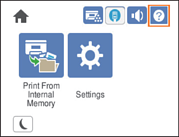
Select  , and then select How To > Load paper. Select the paper type and paper source you want to use to display the animations. Select Finish to close the animation screen.
Do not pull out two or more paper cassettes at the same time. Doing so may cause the printer to become unstable and fall down.
Do not pull out a paper cassette while printing.
Do not push the paper cassette with too much force. Doing so may cause the paper to become misaligned causing a skewed feed or paper jam.
Do not load more than the maximum number of sheets specified for envelopes as it may cause paper feed problems.
Load coated paper one-by-one into the paper tray.
Be sure to adjust the edge guide to the size of the paper being loaded. If the paper size is incorrect, it may cause a paper feed problem, paper jam, or error.
If the paper type is not set correctly, it may cause printing problems.
When printing on paper other than standard paper, be sure to specify the paper size in User Defined Size (Windows) / Manage Custom Size (Mac OS) in the printer driver. If you continue to print with a different paper size selected, the fuser inside the printer may be damaged.