
Check the error displayed on the control panel and follow the instructions to remove the jammed paper including any torn pieces. The LCD screen displays an animation that shows you how to remove jammed paper. Next, select OK to clear the error.
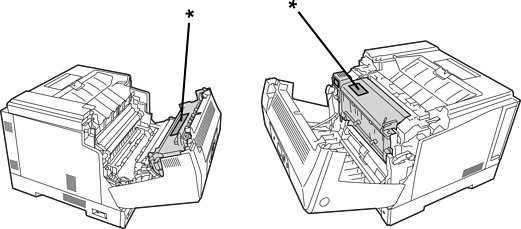
When opening the front cover while using the printer, never touch the fuser unit and the duplexing unit cover that are marked with a caution label. The inside is very hot and high temperatures may cause burns.
The asterisk (*) indicates the position of the caution label.
Note the following when removing jammed paper.
Remove the jammed paper carefully with both hands to prevent the paper from tearing. Removing the paper with too much force may tear the paper making it difficult to remove which may cause another paper jam.
If the paper does tear, remove all of the paper including any torn pieces.
If you cannot remove the torn paper or cannot remove paper that is jammed in a part of the printer not explained in this manual, contact Epson support.