
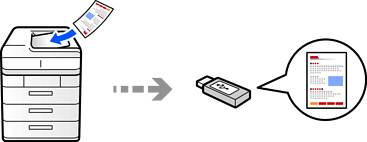
You can save scanned images directly to a memory device inserted into the printer.
Place the originals.
Insert a memory device into the printer.
Select Scan > To Memory Device on the control panel.
Select the scan settings.
 to save your settings as a preset.
 to restore settings to their defaults.
Tap  .
.
Scanned images are saved in the "EPSCAN" folder.