
The print sets feature allows you to print or copy without entering the required number of copies each time.
If you want to print different groups (classes, departments, etc.), you can quickly print or copy by registering the number of copies and sets in the printer.
The following table shows examples of printing the print sets for four classes (one class with 30 students and three classes with 31 students) in a school.
|
Group |
01 |
02 |
|
Copies×Sets |
30×1 |
31×3 |
|
Printouts |
 |
 |
Also, you can easily sort your documents after printing by selecting the finishing settings.
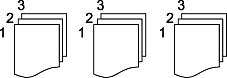
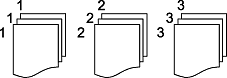
Selecting the sort order
This is an illustration for a document with three pages.
|
Printing Each Copy (Page Order) |
Printing the Same Pages |
|---|---|
 |
 |
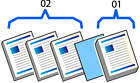
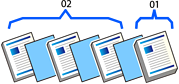
Inserting separator sheets (dividers)
|
Inserting Separator Sheets Between Groups |
Inserting Separator Sheets Between Sets |
|---|---|
 |
 |
Changing paper ejection settings
You apply the settings to groups or sets.
To use the Shift Sort feature, the optional finisher is required.
|
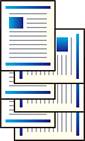
Ejecting Paper by Rotating 90 Degrees |
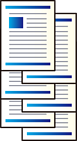
Ejecting Paper by Offsetting |
|---|---|
 |
 |