
This method allows you to connect the printer directly to mobile devices without a wireless router.
You need to install the optional Wireless LAN Interface-P1 to use this function.
Make sure to install Epson Smart Panel on the device beforehand. Once you have connected the printer to the mobile device, you can print from your mobile device using Epson Smart Panel.
You only need to configure these settings for the printer and the mobile device that you want to connect to once. Unless you disable Wi-Fi Direct or restore the network settings to their defaults, you do not need to configure these settings again.
Select  on the home screen.
Select Wi-Fi Direct.
Select Start Setup.
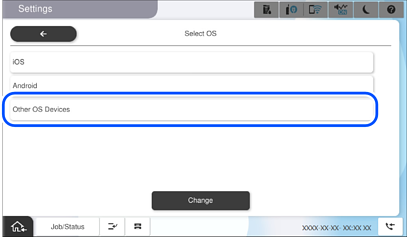
Select Other OS Devices.
The Network Name(SSID) and Password for Wi-Fi Direct for the printer are displayed.
On the mobile device's Wi-Fi screen, select the SSID shown on the printer's control panel, and then enter the password.
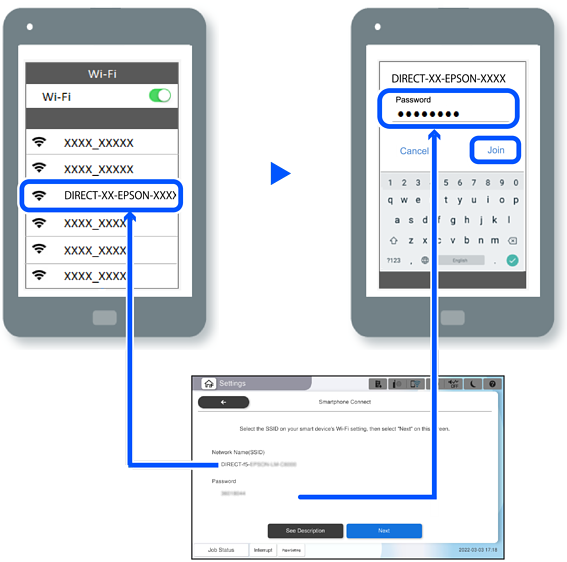
On the printer's control panel, select Next.
On the moble device, start Epson Smart Panel.
Epson Smart Panel automatically adds printers connected to your mobile device. Follow the on-screen instructions.
On the printer's control panel, select Complete.
For mobile devices that have previously connected to the printer, select the printer's network name (SSID) on the device's Wi-Fi screen to reconnect.