
When printing a document consisting of multiple chapters, you can specify a page and paper source and insert a slip sheet between chapters, or print the first page of a chapter on a different paper.
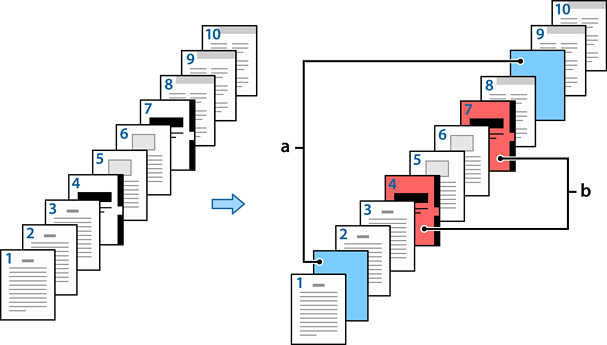
Paper that is inserted before a specified page, such as between chapters, is called a slip sheet ("a" in the figure below). A page that will be printed on different paper, such as the first page of a chapter, is called a chapter page ("b" in the figure below).
Slip Sheet/Chapter Settings
|
Items |
Overview |
|---|---|
|
Pages |
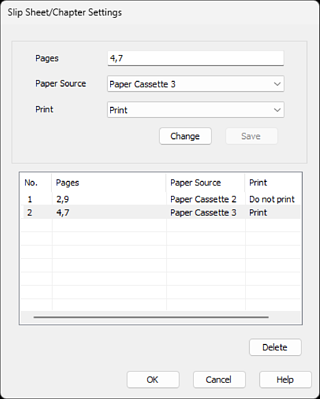
Enter the pages where you want to insert a slip sheet or a chapter page. Use commas to separate pages and hyphens to specify ranges. For example: When you want to insert a slip sheet before pages 2 and 9, enter "2,9". And when you want to print pages 4 and 7 on the chapter paper, enter "4,7". If you want to print 4 to 7 consecutive pages on the paper in the specified paper source, enter "4-7". |
|
Paper Source |
Select the paper source for the Slip Sheet/Chapter. |
|
|
Select this to print a chapter page.
To insert a slip sheet, select Do not print. |
|
Change |
Update the settings for the selected pages. |
|
Save |
Save the current settings to the list. |
|
Delete |
Delete the selected settings. |
The following settings cannot be selected when inserting a slip sheet between pages or printing a specified page on chapter paper.
Multi-Page
Reverse Order
Selecting whether to print the first page of paper on the front or back when printing using 2-sided printing.
Bookbinding printing
Send cover to bottom of stack
Extended Settings > Print a document with both single-sided and doubled-sided pages
If you select Job Type > Save to Storage or Save to Storage and Print, you cannot insert a slip sheet between pages or print the specified page on a chapter paper.


