
您可將掃描的影像儲存至透過網路連線的電腦。
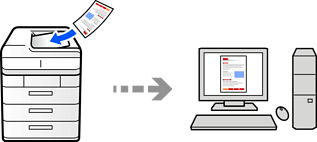
印表機可搭配電腦上安裝的 Document Capture Pro/Document Capture 進行掃描作業。可使用預設工作,亦可建立新的工作。
掃描前,您需要先完成以下設定。
在電腦上安裝下列應用程式。
|
作業系統 |
檢查基本軟體 |
檢查安裝的應用程式 |
|---|---|---|
|
Windows 11 |
|
按下開始鍵,然後查看 [All apps] > [Epson Software] 資料夾 > [Document Capture Pro],以及 [EPSON] 資料夾 > [Epson Scan 2]。 |
|
Windows 10 |
|
按下開始鍵,然後查看 [Epson Software] 資料夾 > [Document Capture Pro],以及 [EPSON] 資料夾 > [Epson Scan 2]。 |
|
Windows 8.1 |
|
請在搜尋快速鍵中輸入應用程式名稱,然後檢查顯示的圖示。 |
|
Windows 7 |
|
按下開始鍵,然後選取[所有程式]。然後,檢查 [Epson Software] 資料夾 > [Document Capture Pro],以及 [EPSON] 資料夾 > [Epson Scan 2]。 |
|
Mac OS |
|
選取[前往] > [應用程式] > [Epson Software]。 |
如果沒有安裝應用程式,請從 Epson 網站下載並安裝。
將印表機與電腦連線至網路。
有關進行設定的工作流程詳細資訊,請參閱以下連結。
放置原稿。
在控制面板上選取 [掃描] > [傳送至電腦]。
選取 [選擇電腦],然後選取已安裝 Document Capture Pro 的電腦。
印表機控制面板可顯示最多 110 台已安裝 Document Capture Pro 的電腦。
選擇工作。
點選  。
。
Document Capture Pro 在您的電腦上自動啟動並開始掃描。
參考 Document Capture Pro 說明以了解關於功能使用的詳細資訊,例如建立和登錄新工作。
您不僅可從印表機、還可使用 Document Capture Pro 從您的電腦開始掃描。如需詳細資料,請參閱 Document Capture Pro 說明。