
You can insert a slip sheet by specifying the page and paper spurce. This section uses the procedure for inserting a slip sheet before pages 4 and 7 as shown in the figure as an example.
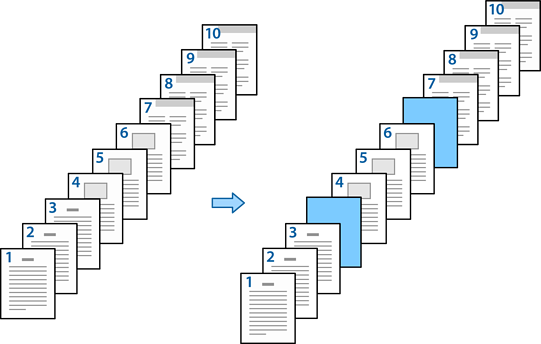
Load the slip sheet to be inserted between pages in the printer as shown below.
Paper Cassette 1: white paper (plain paper), Paper Cassette 2: light blue paper (slip sheet)
Open the file you want to print on your computer.
Display the Main tab on the printer driver screen, and select Off from 2-Sided Printing.
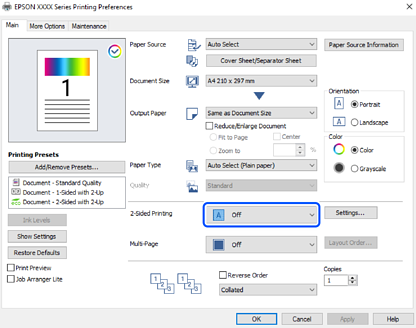
Select Cover Sheet/Separator Sheet from Paper Source.
On the screen displayed, set Front Cover/First Page, Other Pages, and Back Cover/Last Page.
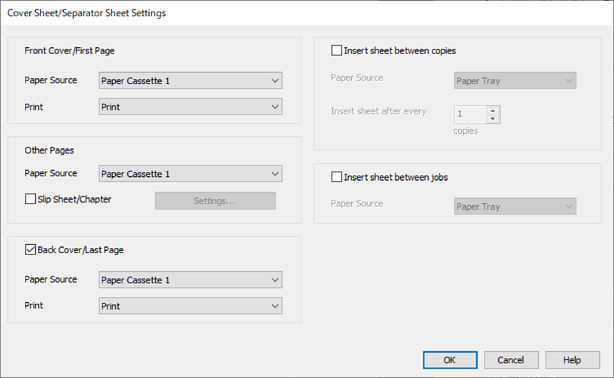
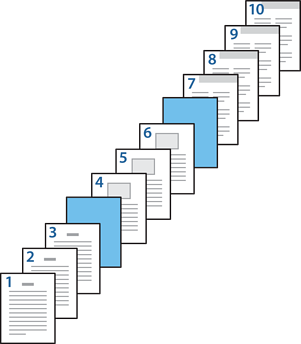
Make detailed settings for the second and subsequent sheets (pages 2 to 9). Select Slip Sheet/Chapter and click Settings to open the detailed settings screen.
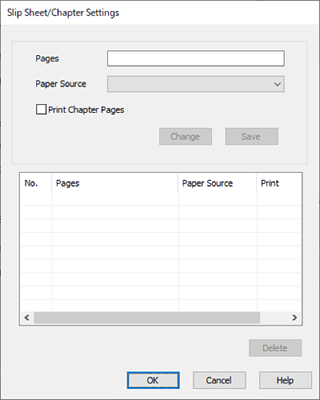
Enter the page number in Pages so that the slip sheet is inserted before the specified page.
Pages: 4,7
Select the paper source in which the slip sheet is loaded from Paper Source.
Paper Source: Paper Cassette 2
Do not select Print Chapter Pages, and then click Save.
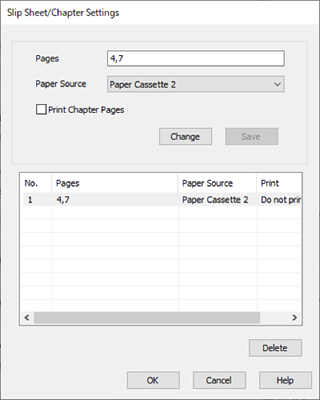
Click OK to close the Slip Sheet/Chapter Settings screen, and then click OK to close the Cover Sheet/Separator Sheet Settings screen.
Set the other items on the Main and More Options tabs as necessary, and then click OK.
Click Print.