
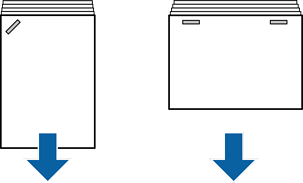
The arrows in the illustration indicate the paper ejection direction.
You may be able to reduce paper misalignments by selecting the following menu. Note that printing may take longer.
Control panel
Settings > General Settings > Printer Settings > Printout Alignment Improvement > Finisher > On
Printer driver (Windows)
Select Maintenance tab >Extended Settings >Printout Alignment Improvement(Finisher) >On
Printer driver (Mac OS)
1. Select System Preferences (or System Settings) from the Apple menu > Printers & Scanners (or Print & Scan, Print & Fax), and then select the printer.
2. Select Options & Supplies > Options > Printout Alignment Improvement(Finisher) > On, and then click OK.
Lower the density setting. If the density is too high, paper may be wavy or curled which can cause this problem.