The items may not be available depending on other settings you made.
The location where the items are displayed may change depending on whether the options are installed.
Advanced Menu Options for Copying
Cover & Slip Sheet
Cover
Specify these when you want to add covers to your copies.
Front Cover
Allows you to add front covers to the copies. If you have loaded paper for the cover, select the paper source in Paper Setting. If you do not want to print on the front cover, select Do not Print in Print Mode.
Back Cover
Allows you to add back covers to the copies. If you have loaded paper for the cover, select the paper source in Paper Setting. If you do not want to print on the back cover, select Do not Print in Print Mode.
Slip Sheet
Specify these settings when you want to insert the slip sheets into the copies.
End of Job
Allows you to insert slip sheets for each copy of the job. If you have loaded paper for the slip sheets, select the paper source in Paper Setting.
End of Set
Allows you to insert a slip sheet for each set. If you have loaded paper for the slip sheets, select the paper source in Paper Setting. You can also specify the insertion interval for the slip sheets in Sheets per Set.
End of Page or Chapter
Allows you to select the settings to insert slip sheets of chapters at the pages you want to insert them. The setting values are saved and displayed in a list. You can check the details of the settings by selecting the setting from the list. You can also edit or delete the setting.
Original Size
Select the size of your original. When you select Auto Detect, the size of your original is automatically detected. When copying non-standard size originals, select User-Defined, and then specify the original size.
Mixed Size Originals
You can place the following combination of sizes in the ADF at the same time. A3 and A4; B4 and B5. When using these combinations, originals are copied at the actual size of the originals. Place your originals by aligning the width of the originals as shown below.
Orientation (Original)
Select the orientation of your original.
Book →2Pages
Copies two facing pages of a booklet onto separate sheets of paper.
Select which page of a booklet to scan.
Continuous Scanning
You can place a large number of originals in the ADF in batches, and scan them as a single scanning job.
Image Quality
Adjust image settings.
Contrast
Adjust the difference between the bright and dark parts.
Sharpness
Adjust the outline of the image.
Remove Background
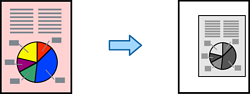
Select the darkness of the background. Tap + to lighten (whiten) the background and tap - to darken (blacken) it.
If you select Auto, the background colors of the originals are detected, and they are removed or lightened automatically. It is not applied correctly if the background color is too dark or not detected.
Binding Margin
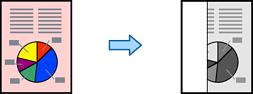
Select settings such as the binding position, binding width, and the orientation of the original. Due to the specifications of this printer, you cannot copy within 3 mm from the edge of the paper. Therefore, even if the binding margin is set to 3 mm or less, actually there will be a margin of 3 mm.
You can also select how to create the binding margin from the following three menus.
Binding Width
Shifts and copies the image according to the binding width. If the image on the opposite side of the binding margin extends beyond the edge of the paper, the data is not printed.
Reduce to Fit Paper
Copies the scanned image at a smaller size according to the binding width to fit within the size of the paper. If the Reduce/Enlarge value is larger than the paper size, data may be printed beyond the edges of the paper.
Erase Image Over Margin
Erases the image where the binding margin is created to secure the binding margin width.
Reduce to Fit Paper
Copies the scanned image at a smaller size than the Reduce/Enlarge value to fit within the paper size. If the Reduce/Enlarge value is larger than the paper size, data may be printed beyond the edges of the paper.
Remove Shadow
Removes shadows in the original that appear in the copies.
Frame
Removes shadows that appear around copies when copying thick paper.
Center
Removes shadows that appear in the center of copies when copying a booklet.
Remove Punch Holes
Removes the binding holes when copying.
ID Card Copy
Select to scan both sides of an ID card and copies onto one side of a paper.
Proof Copy
When making multiple copies, you can start with one copy to check the results, and then copy the rest.
Output Tray
Select the output tray for Copying. This menu is displayed only when the staple finisher is installed.
Stamp
Stamp
Select On to print stamps on your copies.
Type
Select the stamp type.
Stamp Position
Select the stamp position.
Print Page
Select on which page you want to print the stamp.
Size
Select the stamp size.
Transparency
Select whether or not to make the stamp transparent.
Date Stamp
Date Stamp
Select On to print date stamps on your copies.
Date Format
Select the date format.
Stamp Position
Select the position for the date stamp.
Size
Select the size of the date stamp.
Background
Select whether or not to make the date stamp's background white. If you select White, you can see the date stamp clearly when the background for the data is not white.
Page Numbering
Page Numbering
Select On to print page numbers on your copies.
Format
Select the format for page numbering.
Stamp Position
Select the position for page numbering.
Change Numbering
Select which page you want to print the page number. Select Starting Page Number to specify the page on which page number printing should begin. You can also specify the starting page number in First Print Number.
Size
Select the size of the number.
Background
Select whether or not to make the page number's background white. If you select White, you can see the page number clearly when the background for the original is not white.
File Storing
You can save the scanned image to the storage.
Setting:
Select whether or not to save the scanned image only to the storage.
Folder (Required):
Select the storage in which to save the scanned image.
File Name:
Set the file name.
File Password:
Set the password to select the file.
User Name:
Set the user name.
Print Sets
Allows you to select settings to sort copies into groups. You can set the number of copies, number of sets, and the finishing options.
Erase Red Color
Select to make copies with red characters erased from the originals.