
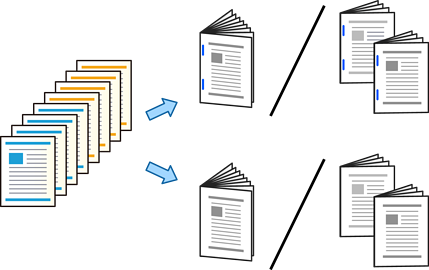
You can eject each set of copies with saddle stitching or folding.
This feature is available with the optional staple finisher and saddle stitch unit.
Place the originals.
Select Copy on the home screen.
Select the Basic Settings tab, and then select Booklet > Booklet.
Enable Booklet.
If a confirmation screen for automatically specified items is displayed, check the contents, and then select OK.
Specify Binding and Binding Margin and then select OK.
Select Saddle Stitch or Half Fold, and then enable the setting.
Specify the details as the number of sheet for saddle stitch or half fold and paper setting.
If booklets or paper remain in the booklet tray, you will not be able to start bookbinding printing. Make sure there is nothing on the booklet tray.
Tap  .
.