Before Using the Printer
Part Names
Setup
Basic Operations
Cleaning
Troubleshooting
Appendix
Top > Setup > Connecting Cables
Connecting Cables
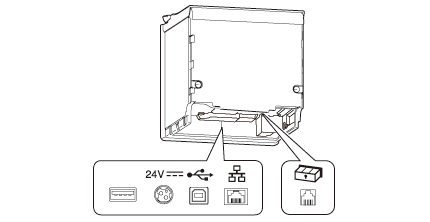
Connect the AC adapter and the interface cable to the connectors.
-
Remove the cover if it is attached.
 Removing the covers
-
Connect the AC adapter and the interface cable to the connectors at the bottom of the printer.
-
When using the optional Wireless LAN unit, connect the unit to the USB connector.
-
When using the optional customer display (DM-D30), connect the USB cable to the USB connector.
-
When charging smart devices or USB devices, connect the cable to the USB connector for charging.
-
Make sure you use the genuine cable for the tablet, smartphone, or USB device you are using.
-
Depending on how the device is being used, it may not charge to 100%.
-
It may take a few seconds before charging starts as the device searches for the most suitable amperage.
-
Charging may not be performed depending on the device's charging specifications.
-
Charging stops if it exceeds the rating for the USB connector.
-
It may be hard to disconnect some types of USB cable. Do not forcibly pull the cable, or the USB connector and USB cable may be damaged. Contact your dealer if you encounter the trouble.
-
Reattach the cover.
Attaching the covers
-
Connect the interface cable to the device.
-
Connect the AC cable plug to a power outlet.
 CAUTION:
It may be hard to disconnect some types of USB cable. Do not forcibly pull the cable, or the USB connector and USB cable may be damaged. Contact your dealer if you encounter the trouble.
 Note:
Note: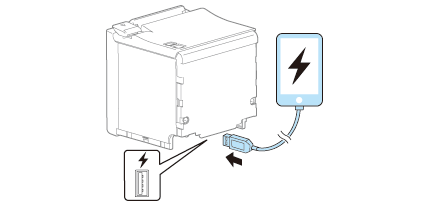 CAUTION:
 WARNING:
-
Never insert the AC cable plug into a socket that does not meet the input voltage of the AC adapter. Doing so may result in damage to the printer.
-
Should a fault ever occur, immediately turn off the power to the printer and unplug the AC cable from the socket.
Before Using the Printer
Part Names
Setup
Basic Operations
Cleaning
Troubleshooting
Appendix
Top > Setup > Connecting Cables
Connecting Cables
Connect the AC adapter and the interface cable to the connectors.
-
Remove the cover if it is attached.
Removing the covers
-
Connect the AC adapter and the interface cable to the connectors at the bottom of the printer.
-
When using the optional Wireless LAN unit, connect the unit to the USB connector.
-
When using the optional customer display (DM-D30), connect the USB cable to the USB connector.
-
When charging smart devices or USB devices, connect the cable to the USB connector for charging.
-
Make sure you use the genuine cable for the tablet, smartphone, or USB device you are using.
-
Depending on how the device is being used, it may not charge to 100%.
-
It may take a few seconds before charging starts as the device searches for the most suitable amperage.
-
Charging may not be performed depending on the device's charging specifications.
-
Charging stops if it exceeds the rating for the USB connector.
-
It may be hard to disconnect some types of USB cable. Do not forcibly pull the cable, or the USB connector and USB cable may be damaged. Contact your dealer if you encounter the trouble.
-
Reattach the cover.
Attaching the covers
-
Connect the interface cable to the device.
-
Connect the AC cable plug to a power outlet.
CAUTION:It may be hard to disconnect some types of USB cable. Do not forcibly pull the cable, or the USB connector and USB cable may be damaged. Contact your dealer if you encounter the trouble.
Note:CAUTION:WARNING:-
Never insert the AC cable plug into a socket that does not meet the input voltage of the AC adapter. Doing so may result in damage to the printer.
-
Should a fault ever occur, immediately turn off the power to the printer and unplug the AC cable from the socket.