Top > Auto cutter error
Auto cutter error

Open the roll paper cover and check for any foreign objects. Then clear the error from your system.
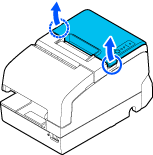
If the roll paper cover does not open, or if the error reoccurs after resetting it from your system, perform the following procedure to reset the cutter blade to its original position. Then, clear the error again.
-
Open the receipt unit.
-
Use an object with a pointed tip such as a ballpoint pen or tweezers to turn the knob (a) of the autocutter blade in the direction of the arrow until you see a pin (b) in the opening of the frame, as shown in illustration below.
-
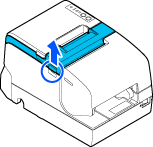
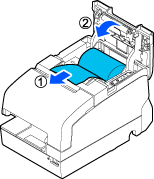
Open the roll paper cover.
-
Pull out some paper, and close the roll paper cover.
-
Tear off the paper with the manual cutter.


Top > Auto cutter error
Auto cutter error
Open the roll paper cover and check for any foreign objects. Then clear the error from your system.
If the roll paper cover does not open, or if the error reoccurs after resetting it from your system, perform the following procedure to reset the cutter blade to its original position. Then, clear the error again.
-
Open the receipt unit.
-
Use an object with a pointed tip such as a ballpoint pen or tweezers to turn the knob (a) of the autocutter blade in the direction of the arrow until you see a pin (b) in the opening of the frame, as shown in illustration below.
-
Open the roll paper cover.
-
Pull out some paper, and close the roll paper cover.
-
Tear off the paper with the manual cutter.