
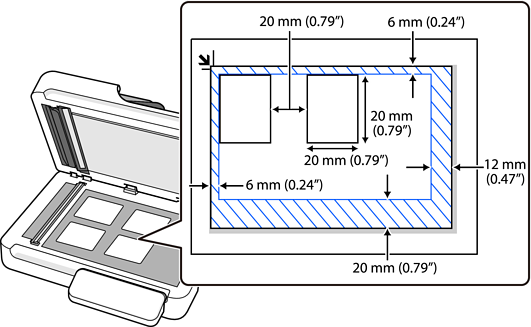
When placing multiple originals on the scanner glass, make sure they meet the following requirements.
Keep each original away from the edges of the scanner glass by the following distances:
Top: 6 mm (0.24 in.)
Left: 6 mm (0.24 in.)
Right: 12 mm (0.47 in.)
Bottom: 20 mm (0.79 in.)
Leave a gap of at least 20 mm (0.79 in.) between each original.
The originals must be at least 20×20 mm (0.79×0.79 in.) in size.
Check that the originals are placed straight.
When scanning, set Document Size to Auto Detect on the Scan Settings screen.
Depending on the originals, you may not be able to scan multiple originals at the same time. Scan such originals one by one.