> Maintenance > Cleaning the ADF > Resetting the Number of Scans After Cleaning the ADF (Regular Cleaning)

Resetting the Number of Scans After Cleaning the ADF (Regular Cleaning)

After cleaning the ADF (Regular Cleaning), reset the scan number using the Epson Scan 2 Utility.

  1. Turn on the scanner.

  2. Start the Epson Scan 2 Utility.

    • Windows 11/Windows Server 2022
      Click the start button, and then select All apps > EPSON > Epson Scan 2 Utility.
    • Windows 10/Windows Server 2016
      Click the start button, and then select EPSON > Epson Scan 2 Utility.
    • Windows 8.1/Windows 8/Windows Server 2012 R2/Windows Server 2012
      Enter the application name in the search charm, and then select the displayed icon.
    • Windows 7/Windows Server 2008 R2/Windows Server 2008
      Click the start button, and then select All Programs or Programs > EPSON > Epson Scan 2 > Epson Scan 2 Utility.
    • Mac OS
      Select Go > Applications > Epson Software > Epson Scan 2 Utility.
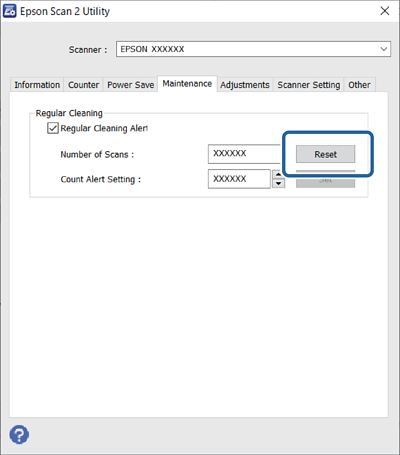
  3. Click the Maintenance tab.

  4. Click Reset from Regular Cleaning.

    Note:

    You cannot reset when Regular Cleaning Alert is not selected.