
Check the following before scanning.
Make sure there are no originals on the scanner glass.
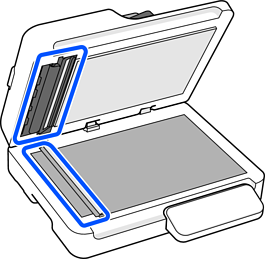
Make sure there is no dust or dirt in the areas indicated in the following illustration.
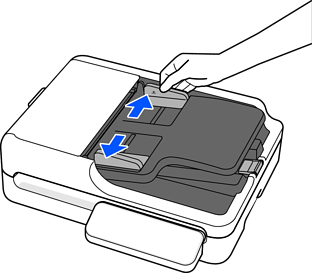
Slide the edge guides on the input tray all the way out.
Load the original into the input tray straight, facing up and with the top edge facing into the ADF.
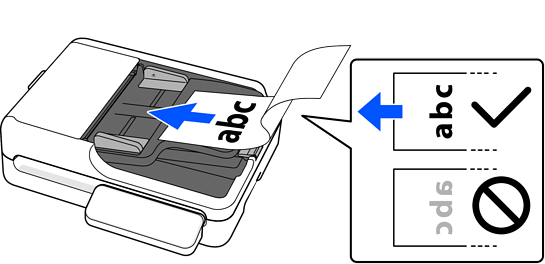
Slide the original into the ADF until it meets resistance.
Adjust the edge guides to fit the original without any gap. Otherwise, the originals may be fed skewed.
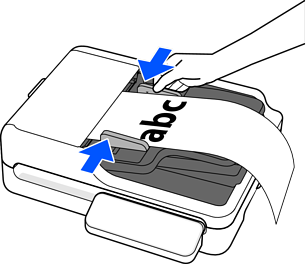
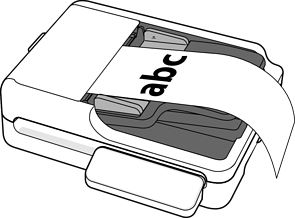
Support long paper at the input side so that it does not drop out of the ADF, and on the output side so that the ejected paper does not fall from the output tray.
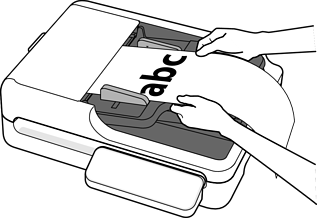
When scanning, set the Document Size according to the length of the original.
When using Document Capture Pro/Document Capture: Press the Detailed Settings button on the scan settings screen to open the Epson Scan 2 screen. In Main Settings, set Document Size to Auto Detect (Long Paper) or Customize.
When using Epson Scan 2: In Main Settings, set Document Size to Auto Detect (Long Paper) or Customize.