> Scanning > Scanning from a Computer > Scanning Using Epson Scan 2

Scanning Using Epson Scan 2

You can scan the originals using detailed settings that are suitable for text documents.

  1. Place the original.

  2. Start Epson Scan 2.

    • Windows 11
      Click the start button, and then select All apps > EPSON > Epson Scan 2.
    • Windows 10/Windows Server 2022/Windows Server 2019/Windows Server 2016
      Click the start button, and then select EPSON > Epson Scan 2.
    • Windows 8.1/Windows 8/Windows Server 2012 R2/Windows Server 2012
      Enter the application name in the search charm, and then select the displayed icon.
    • Windows 7/Windows Server 2008 R2/Windows Server 2008
      Click the start button, and select All Programs or Programs > EPSON > Epson Scan 2 > Epson Scan 2.
    • Mac OS
      Select Go > Applications > Epson Software > Epson Scan 2.
  3. Make the following settings on the Main Settings tab.
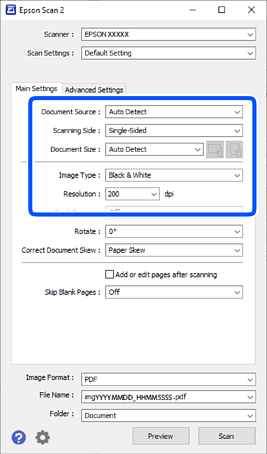
    • Document Source: Select the source where the original is placed. When Auto Detect is selected and there are originals in both the ADF and on the scanner glass, scanning from the ADF takes priority.
    • Scanning Side: Select the side of the original you want to scan when scanning from the ADF. Select Double-Sided to scan both sides of the originals.
    • Document Size: Select the size of the original you placed.
      When loading originals with unconventional sizes, see the following to make the settings.
      • When placing multiple originals on the scanner glass at once: Select Auto Detect.
      • When loading long paper into the ADF: Select Auto Detect (Long Paper) or select Customize to create a custom size.
      • If the size of the original you want to scan is not on the list: Select Auto Detect or select Customize to create a custom size.
    • / (Original orientation) buttons: Select the set orientation of the original you placed. Depending on the size of the original, this item may be set automatically and cannot be changed.
    • Image Type: Select the color you want to use to save the scanned image.
    • Resolution: Set the resolution.
    Note:

    On the Main Settings tab, you can also make the following settings.

    • Stitch Images: Select to stitch the images on the front and back when scanning both sides of the original.

    • Rotate: Select to rotate the original clockwise and scan it.

    • Correct Document Skew: Select to correct the slant of the original.

    • Add or edit pages after scanning: Select to add different originals or edit (rotate, move, and delete) the scanned pages after scanning.

    • Skip Blank Pages: Select to skip any blank pages in the originals when scanning from the ADF.

    Some items may not be available depending on other settings you made.

  4. Make other scan settings if necessary.

    • You can preview the scanned image by clicking the Preview button. The preview window opens, and the previewed image is displayed.
      When you perform a preview using the ADF, the original is ejected from the ADF. Place the ejected original again.
    • On the Advanced Settings tab, you can make image adjustments using detailed settings which are suitable for text documents, such as the following.
      • Remove Background: Removes the background of the originals.
      • Text Enhancement: You can make blurred letters in the original clear and sharp.
      • Auto Area Segmentation: You can make letters clear and images smooth when performing black and white scanning for a document that contains images.
      • Dropout: You can remove the color specified for the scanned image, and then save it in grayscale or black and white. For example, you can erase marks or notes you wrote in the margins with color pen when scanning.
      • Color Enhance: You can enhance the color specified for the scanned image, and then save it in grayscale or black and white. For example, you can enhance letters or lines that are in light colors.
    Note:

    Some items may not be available depending on other settings you made.

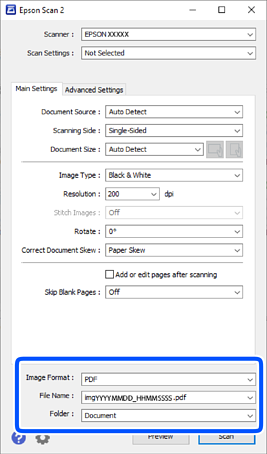
  5. Set the file saving settings.

    • Image Format: Select the file format for saving the scanned image from the list.
      You can make detailed settings for each file format except BITMAP and PNG. After selecting the save format, select Options from the list.
    • File Name: Confirm the displayed file name.
      You can change settings for the file name by selecting Settings from the list.
    • Folder: Select the save folder for the scanned image from the list.
      You can select another folder or create a new folder by selecting Select from the list.
  6. Click Scan.

    Note:

    You can also start scanning by pressing the button on the scanner’s control panel.

    The scanned image is saved to the folder you specified.