
When scanning from the ADF and the scanner glass in a single scan, complete the first scan, and then scan the additional originals from another document source.
Select Auto Detect from Document Source, and then select Add or edit pages after scanning before starting the scan.
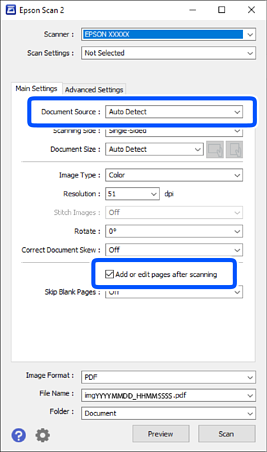
When scanning is complete, the Add page screen is displayed. Place the next original and click Add to scan.
When there are originals in both the ADF and on the scanner glass, scanning from the ADF takes priority.
When scanning is complete and the Edit Scanned Results screen is displayed, place the next original and then click the +Add button.
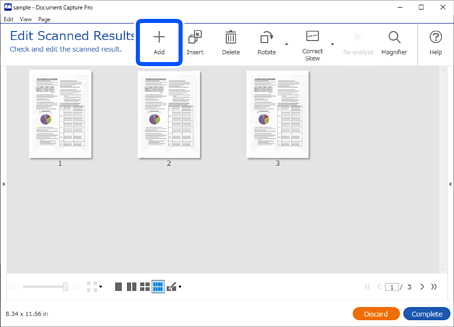
On the Scan Settings screen, select Source, and then click OK to start scanning.
If the Edit Scanned Results screen is not displayed when scanning a job, select Show Edit Page dialog before saving on the Save Settings screen from the job settings.
You can also skip the Edit Scanned Results screen. On the Scan Settings screen, select Auto Detect from Source, and then select Show the confirmation dialog after scanning before starting the scan.
When Auto Detect is selected and there are originals in both the ADF and on the scanner glass, scanning from the ADF takes priority.