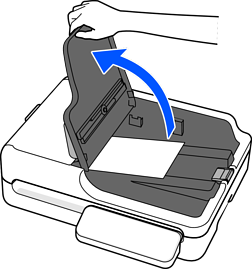
You can place and scan batches of different size originals (105.0×148.0 mm (4.13×5.83 in.) to A4 or letter size) up to a total thickness of 6.6 mm (0.26 in.). You can also load a mixture of paper types or thickness.
When placing and scanning originals that are a mixture of different sizes, originals may be fed askew because not all of the originals are supported by the edge guides.
Originals may be jammed or fed askew if you set different types or very different sizes of originals, such as in the following cases.
·Thin paper and thick paper
·A4 size paper and small size paper
·Combinations of folded or wrinkled paper
If originals are fed askew, check the scanned images. If the image is skewed, reduce the number of originals loaded and scan again.
Check the following before scanning.
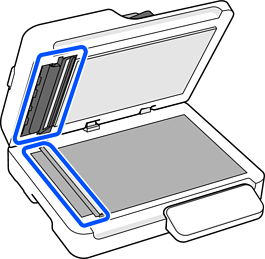
Make sure there are no originals on the scanner glass.
Make sure there is no dust or dirt in the areas indicated in the following illustration.
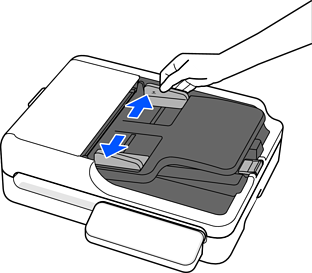
Slide the edge guides on the input tray all the way out.
Load the originals with the side to be scanned facing up at the center of the input tray in descending order of paper size with the widest at the back and the narrowest at the front.
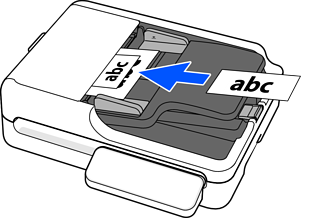
Check the following points when setting different sizes of originals.
Slide the originals with their leading edges aligned, until they meet resistance in the ADF.
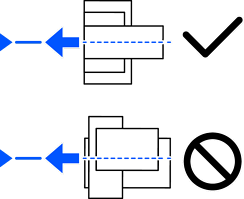
Set the originals at the center of the input tray.
Set the originals straight.
If not, originals may be fed askew or jammed.
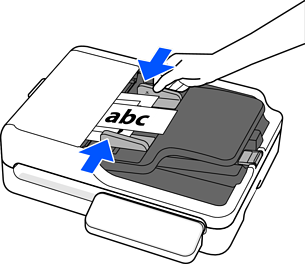
Align the edge guides with the widest original.
When scanning, set Document Size to Auto Detect in the Scan Settings.
When using Document Capture Pro/Document Capture: Set Document Size to Auto Detect on the Scan Settings screen.
When using Epson Scan 2: In Main Settings, set Document Size to Auto Detect.
When using Computer on the scanner's control panel: When editing jobs in Document Capture Pro/Document Capture, set Document Size to Auto Detect on the Scan Settings screen.
When using Network Folder/FTP, Email, Cloud, or USB Drive on the scanner's control panel: Set Original Size to Auto Detect in the settings.
When scanning small originals or scanning with the stopper raised, lift the input tray to remove the scanned originals.