
If an original gets jammed in the ADF, follow the steps below to remove it.
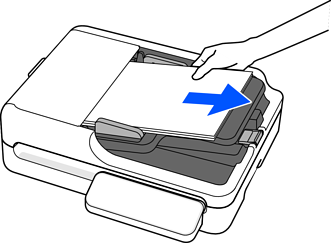
Remove the original that is not fed.
Open the ADF cover.
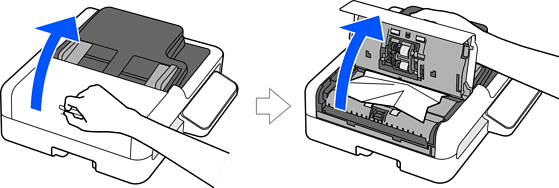
Remove any jammed originals.
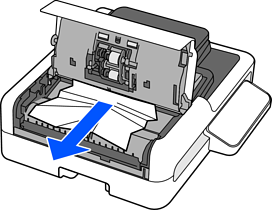
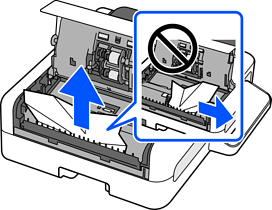
Do not pull the originals out sideways. Otherwise, the original or the ADF may be damaged.
Close the ADF cover.
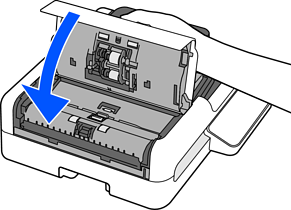
Raise the input tray.
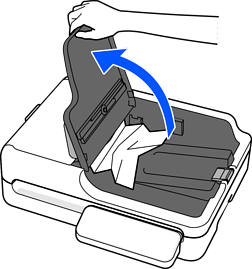
Remove any jammed originals.
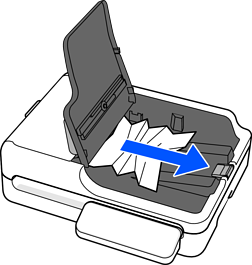
Lower the input tray.
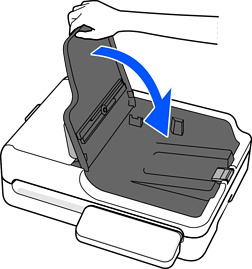
Open the document cover.
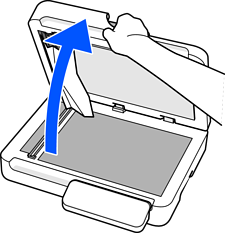
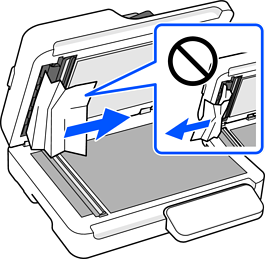
Remove any jammed originals.
Remove the jammed originals in the direction shown in the illustration. Otherwise, the original or the ADF may be damaged.
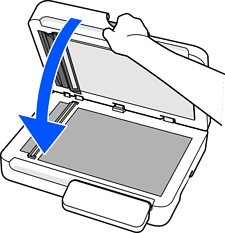
Close the document cover.
Open the ADF cover.
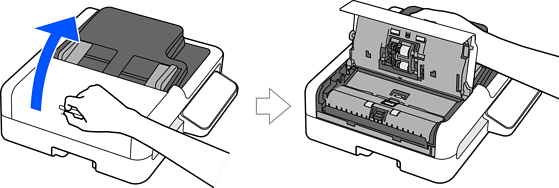
Make sure that no paper (or pieces of paper) remain in the areas shown in the illustration.
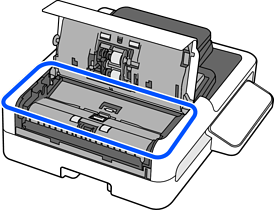
Close the ADF cover.
If the error continues to occur after removing the jammed original, open the ADF cover and check again to make sure no pieces of paper remain.
When scanning using the ADF, make sure that the originals are placed correctly. Also, make sure that the originals meet the conditions and type required to scan using the ADF.