
You can scan the originals using detailed settings that are suitable for text documents.
Place the original.
Start Epson Scan 2.
Make the following settings on the Main Settings tab.
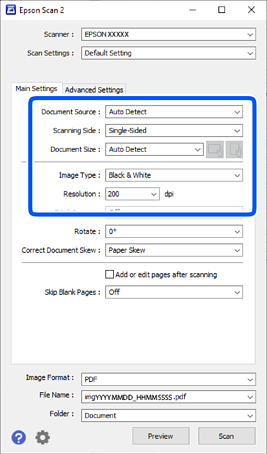
 /
/  (Original orientation) buttons: Select the set orientation of the original you placed. Depending on the size of the original, this item may be set automatically and cannot be changed.
On the Main Settings tab, you can also make the following settings.
Stitch Images: Select to stitch the images on the front and back when scanning both sides of the original.
Rotate: Select to rotate the original clockwise and scan it.
Correct Document Skew: Select to correct the slant of the original.
Add or edit pages after scanning: Select to add different originals or edit (rotate, move, and delete) the scanned pages after scanning.
Skip Blank Pages: Select to skip any blank pages in the originals when scanning from the ADF.
Some items may not be available depending on other settings you made.
Make other scan settings if necessary.
Some items may not be available depending on other settings you made.
Set the file saving settings.
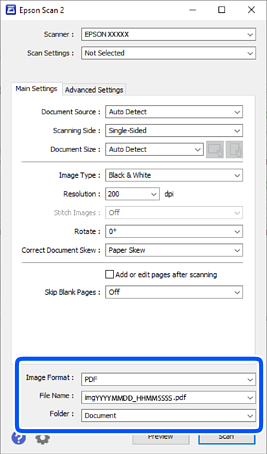
Click Scan.
You can also start scanning by tapping  on the scanner’s control panel.
The scanned image is saved to the folder you specified.