
You can save scanned images to a USB Drive.
Place the original.
Insert the USB drive into the scanner's external interface USB port.
The USB Drive scan settings screen is displayed.
If the USB Drive scan settings screen is not displayed, select USB Drive on the control panel's home screen.
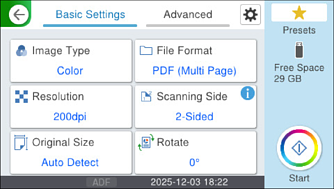
Select items on Basic Settings tab, such as the save format.
Basic Menu Options for Scanning to a USB Drive
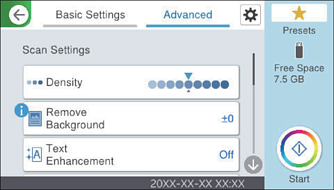
Select the Advanced tab, review the settings, and then change them if necessary.
Advanced Menu Options for Scanning to a USB Drive
Select  to save your settings as a preset.
Select  , check the Scanner Settings, and then change them if necessary.
Tap  .
.
Scanned images are saved on the USB drive.