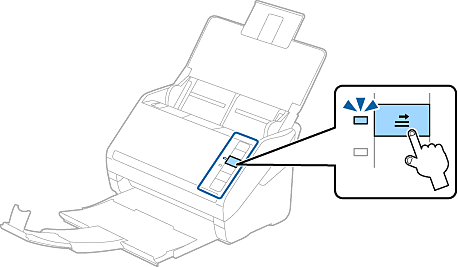
Open the input tray, and then slide out the output tray and raise the stopper.
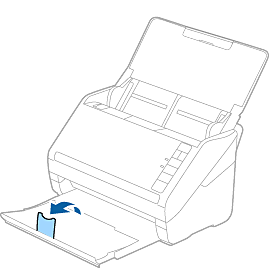
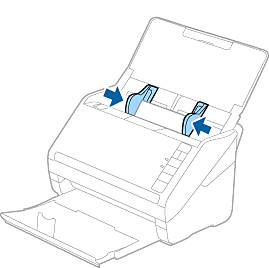
Slide the edge guides on the input tray all the way out.
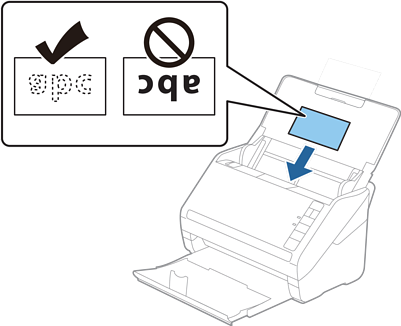
Load the laminated cards into the input tray facing down with the top edge facing into the ADF.
Slide the laminated cards into the ADF until they meet resistance.
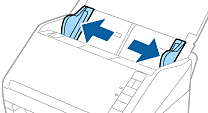
Slide the edge guides to fit the edge of the laminated cards.
To scan laminated cards, set the appropriate setting in the Epson Scan 2 window.
When you are using Document Capture Pro, you can open the Epson Scan 2 window by clicking the Detailed Settings button on the Scan Settings screen.
Select Scan laminated card on the Settings window on the Main Settings tab in Epson Scan 2 to increase the accuracy of auto size detection. See the Epson Scan 2 help for details.
Select Off in Detect Double Feed on the Main Settings tab in Epson Scan 2. See the Epson Scan 2 help for details.
If you forget to disable Detect Double Feed in Epson Scan 2 and a double feed error occurs, remove the card from the ADF and then reload it, press the  (Double Feed Detection Skip) button on the scanner as shown below to disable Detect Double Feed for the next scan, and then scan again. The (Double Feed Detection Skip) button only disables Detect Double Feed for one sheet.