
The items may not be available depending on other settings you made.
Select the color of the output image.
When you select the following, the scanner detects the color of the originals automatically and saves the images using the detected colors.
Color/Grayscale:
Converts the scanned image into 24-bit color or 8-bit gray.
The available image types may vary depending on the File Format you selected. See the following for more details.
Select the format in which to save the scanned image.
When you want to save as PDF, select whether to save all originals as one file (multi-page) or save each original separately (single page).
Compression Ratio:
Select how much to compress the scanned image.
Select the side of the original you want to scan when scanning from the ADF.
Orientation (Original):
Select the orientation of the original.
Binding(Original):
Select the binding direction of the original.
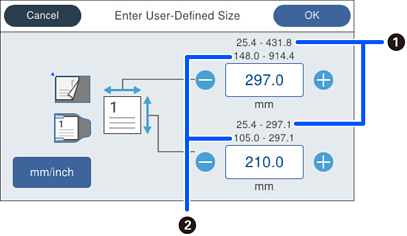
Select the size of the original you placed.
You can set a custom original size in User Defined.
The size of the original that you can define varies depending on the document source used to place the original. Enter values in the ranges displayed on the screen.
 : When the original is placed on the scanner glass
 : When the original is placed in the ADF
Orientation (Original):
Select the orientation of the original.
Crop Margins for Size "Auto":
Adjust the cropping area when selecting Auto Detect.