
To save to cloud storage, make sure the cloud storage shared folder you want to save to is registered in the contacts.
Place the originals.
Select the following cloud storage options on the home screen of the scanner's control panel.
Enter the save location.
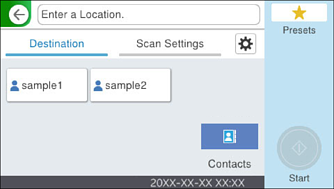
For more information on available cloud storage providers and shared folders, contact your system administrator.
Select Scan Settings, check settings such as the save format, and then change them if necessary.
Scan Menu Options for Scanning to a Folder
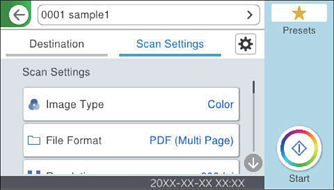
The setting items are the same as when you select Network Folder/FTP.
Scan Menu Options for Scanning to a Folder
Select  to save your settings as a preset.
Select  , check the Scanner Settings, and then change them if necessary.
Tap  .
.
Scanned images are saved in the destination cloud storage shared folder.