
Make sure there is enough space in front of the scanner for the ejected originals.
Make sure the scanner position light ( ) is on.
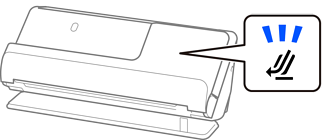
If the scanner position light () is off, pull the scanner position selector to tilt the scanner back.
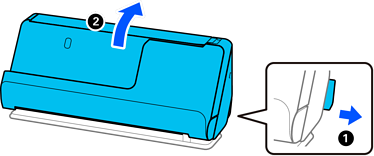
Open the input tray.
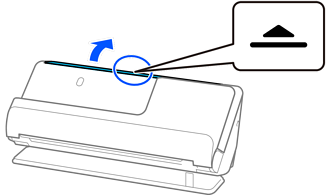
Raise the input tray extension.
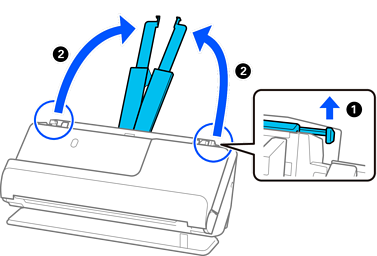
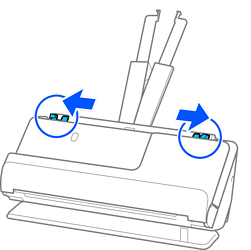
Move the edge guides to the edges of the input tray.
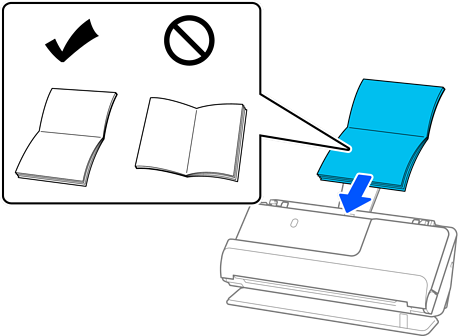
Place the booklet with the side to be scanned facing up and with the side with more pages facing the ADF.
Insert the paper into the ADF until it meets resistance.
Adjust the edge guides to fit the edges of the booklet so that there are no gaps. If there are any gaps, the original may be fed skewed.
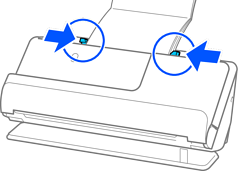
If the edge guides are too far apart or too tight, the original may not be fed correctly. The edge guides should be aligned so that they lightly touch the edges of the original.
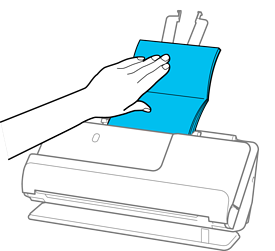
When scanning booklets, support the top of the booklet by hand to prevent it from falling out of the ADF or closing.
If the ejected originals hit the surface of the table on which the scanner is placed and this affects the scanned image, move the scanner to the edge of the table so that the ejected originals can drop and catch them directly.
When scanning booklets, make the appropriate settings on the Epson Scan 2 screen.
When you are using Document Capture Pro, you can open the window by pressing the Detailed Settings button on the Scan Settings screen.
On the Epson Scan 2 screen, use one of the following methods to turn off Detect Double Feed.
· Select Booklets in Scan Settings
· On the Main Settings tab, set Detect Double Feed to Off
See the Epson Scan 2 help for details.