
|
|
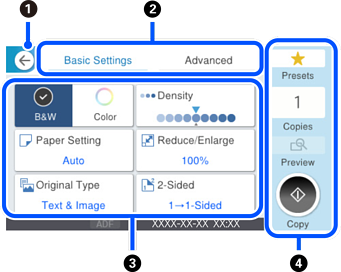
Returns to the previous screen. |
|
|
|
Tap this to switch the list of settings using the tabs. The Basic Settings tab displays frequently used items. The Advanced tab displays other items that you can set as necessary. |
|
|
|
Tap this to display the list of setting items. When
Grayed out items are not available. Select the item to check why it is unavailable. If any problems occur, |
|
|
|
Starts operations using the current settings. Items vary depending on the menu. |
|
|
Presets |
Tap this to display the preset list. You can register current setting as a preset, or load registered presets. |
|
|
Copies |
Tap this to display the on-screen keypad allowing you to enter the number of copies. |
|
|
Preview |
Tap this to display a preview of the image before printing, copying, or sending faxes. |
|
|
|
Starts printing, copying, scanning, or sending faxes. |
|


 is displayed, you can view additional information by selecting the icon. Select settings by selecting the item or adding a check mark. When you have changed an item from the user default or the factory default,
  is displayed on the item.
 is displayed when the setting is environmentally friendly.
 is displayed on the item. Select the icon to check how to solve the problem.

