
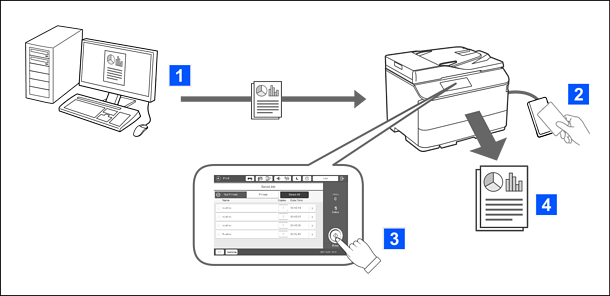
You can store print jobs that are printed from the computer. Log on to the printer as an authenticated user, select the print job, and then print it.
When performing authenticated printing with this device and a storage-less printer on the same network, be sure to update the firmware of both printers to the latest version. (The linking flow is omitted in the figure above.)
For a list of storage-less printers that can be linked with this device, visit the following website:
https://support.epson.net/manu/pullprint_wostorage/
For instructions on how to link, see the Epson Print Admin Serverless Setup & Administration Guide for your printer model.
You can use the following authenticated printing.
Auto release jobs upon device login
Depending on your system administrator settings, all of the jobs that have been registered are printed when you log in.
Print without storing on the printer
If your system administrator allows this function, you can print jobs directly without storing them.
Pull printing function
You can print from any printer as long as the printer is linked using the Pull Printing function.