
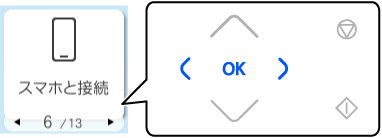
1 Select Smartphone Connect on the home screen on the printer’s control panel, and then press OK.
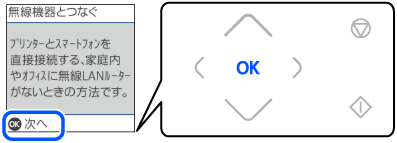
2 Check the message, and press the OK button.
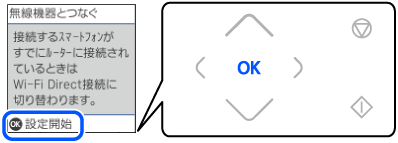
3 Check the message, and press the OK button.
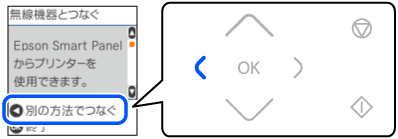
4
Press  .
.
5 Select iOS.
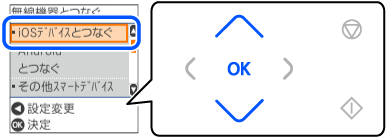
6 Press the OK button.
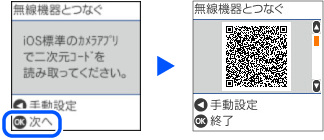
7 Watch the video below to learn how to scan the QR code to connect to the printer.

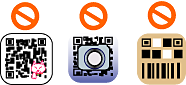
8 Launch the standard iOS Camera app, and then perform the steps according to the video you watched in the previous step. Tap Join to return to this screen.
9 Follow the instructions on the printer’s control panel to complete the connection settings.
10 Switch from the standard camera app and start the Epson printing app.
