
|
|
|
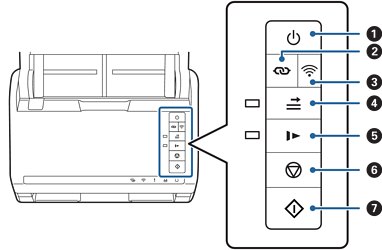
Power button |
Turns the scanner on or off. |
|
|
|
Wi-Fi connect button |
Press the WPS button on the access point, and then press the |
|
|
|
Wi-Fi on/off button |
Press this button for more than three seconds to turn off the wireless signal. Press again to turn on the signal. |
|
|
|
Double feed detection skip button |
Normally, an error occurs when detecting double feeds when loading envelopes, plastic cards, originals with labels or stickers, and so on. Press the 1. Open the scanner cover, and then remove the originals. 2. Close the scanner cover, and then press the 3. Load the originals. 4. Restart scanning by pressing the start button or the software button. |
|
|
|
Slow mode button |
Slow down the feeding speed when scanning. The light is on when this is enabled. Press this button in the following situations:
|
|
|
|
Stop button |
|
|
|
|
Start button |
|
Additional functions are available with different combinations of buttons.
|
|
Hold down the |
|
|
Turn on the scanner while holding down the |


 button to cancel the settings.


