
> Maintenance > Energy Saving

Energy Saving

You can adjust the time before power management is applied. Any increase will affect the product's energy efficiency. Please consider the environment before making any changes.

Depending on the location of purchase, the product may have a feature that turns it off automatically if it is not connected to the network for a specified amount of time. See the following website.

https://www.epson.eu/energy-consumption

  1. Start Epson Scan 2 Utility.

    • Windows 11
      Click the start button, and then select All apps > EPSON > Epson Scan 2 Utility.
    • Windows 10
      Click the start button, and then select EPSON > Epson Scan 2 Utility.
    • Windows 8.1/Windows 8
      Enter the application name in the search charm, and then select the displayed icon.
    • Windows 7
      Click the start button, and then select All Programs or Programs > EPSON > Epson Scan 2 > Epson Scan 2 Utility.
    • Mac OS
      Select Go > Applications > Epson Software > Epson Scan 2 Utility.
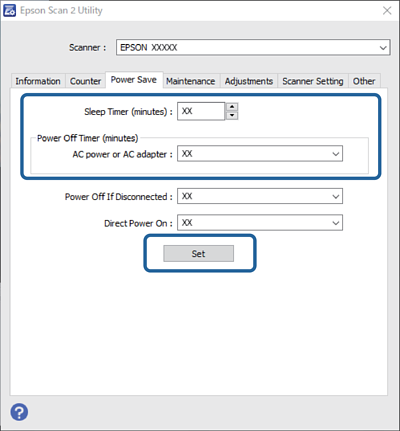
  2. Click the Power Save tab.

  3. Set the Sleep Timer (minutes), Power Off Timer (minutes), or Power Off If Disconnected, and then click Set.
    Note:

    Available features may vary depending on the location of purchase.