
You can scan by simply operating the touch screen on the product without having to use a computer.
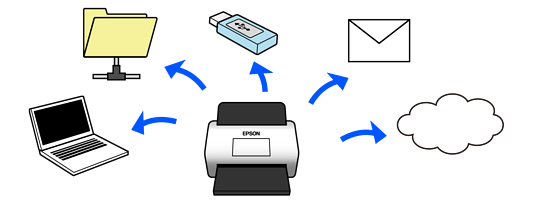
The feature you use depends on the destination of the scanned image.
|
Destination of Scanned Images |
Feature to Use |
|---|---|
|
If you want to save images to a connected computer  |
Scan to Computer Feature Scan by starting the software (Epson ScanSmart) installed on your computer from the control panel. |
|
If you want to save images to a folder on the network  |
Scan to Network Folder/FTP Feature You need to create a shared folder on the same network as the scanner. As well as Network Folder (SMB), you can also set FTP/FTPS and WebDAV (HTTPS/HTTP) as the destination for scanned images. |
|
If you want to send images by email directly from the scanner  |
There are two features that allow you to send scanned images as email attachments. See the following for more details. |
|
If you want to send images directly from the scanner to a cloud service 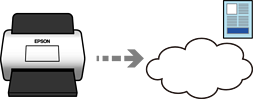 |
Scan to Cloud Feature Using Epson's cloud service, Epson Connect, you can send scanned images to an email address and another company's cloud service. You can send images to cloud services such as Evernote, Google Drive, and Dropbox, as well as to an email address. Scan to Cloud Feature Work Flow Available services are subject to change without notice. |
|
If you want to save images to a USB device connected to the scanner  |
Scan to Memory Device Feature |
|
If you want to save images to a computer connected to the scanner using the WSD feature |
Scan to WSD |