> Maintenance > Replacing the Roller Assembly Kit > Resetting the Number of Scans After Replacing the Rollers

Resetting the Number of Scans After Replacing the Rollers

Reset the number of scans using Epson Scan 2 Utility after replacing the roller assembly kit.

This section explains how to reset using the Epson Scan 2 Utility.

  1. Turn on the scanner.

  2. Start Epson Scan 2 Utility.

    • Windows 11
      Click the start button, and then select All apps > EPSON > Epson Scan 2 > Epson Scan 2 Utility.
    • Windows 10
      Click the start button, and then select EPSON > Epson Scan 2 Utility.
    • Windows 8.1/Windows 8
      Start screen > Apps > Epson > Epson Scan 2 Utility.
    • Windows 7
      Click the start button, and then select All Programs (or Programs) > EPSON > Epson Scan 2 > Epson Scan 2 Utility.
    • Mac OS
      Select Go > Applications > Epson Software > Epson Scan 2 Utility.
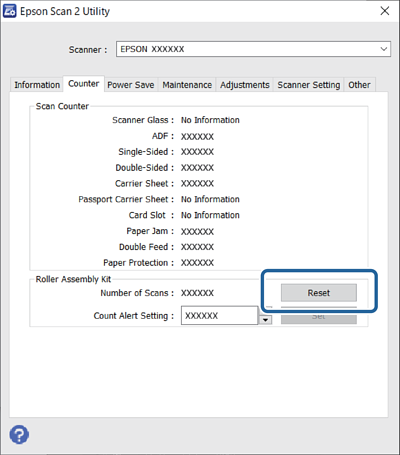
  3. Click the Counter tab.

  4. Click Reset from Roller Assembly Kit.