
To use this feature, make sure the following applications are installed on your computer.
|
OS |
Application Required for Use |
Checking for Installed Applications |
|---|---|---|
|
Windows 11 |
|
Click the start button, and then check the All apps > Epson Software folder > Epson ScanSmart, and the EPSON folder > Epson Scan 2. |
|
Windows 10 |
|
Click the start button, and then check the Epson Software folder > Epson ScanSmart, and the EPSON folder > Epson Scan 2. |
|
Windows 8.1 / Windows 8 |
|
Enter the application name in the search charm, and then check the displayed icon. |
|
Windows 7 |
|
Click the start button, and then select All Programs. Next, check the Epson Software folder > Epson ScanSmart, and the EPSON folder > Epson Scan 2. |
|
OS X El Capitan (10.11) or later |
|
Select Go > Applications > Epson Software. |
|
OS X Yosemite (10.10) / OS X Mavericks (10.9.5) |
|
Select Go > Applications > Epson Software. |
If the application is not installed, download and install it from the Epson website.
For Windows Server operating systems, you can not use this feature.
Place the originals.
Select Scan on the control panel.
Select Computer.
Select a computer on which to save the scanned images.
 , and then select another computer.
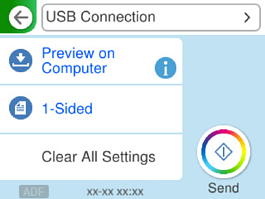
Select  to select how to save the scanned image to a computer.
Tap  .
.
When using Windows, or OS X El Capitan (10.11) or later: Epson ScanSmart automatically starts on your computer, and scanning starts.
See the Epson ScanSmart help for detailed operation information for the software. Click Help on the Epson ScanSmart screen to open the help.
The color, size, and border of the scanned image will not be exactly the same as the original.