
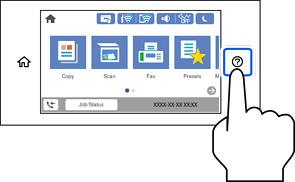
You can place the originals by referring to the animations displayed on the printer's LCD screen.
Select  , and then select How To > Place Originals. Select the method of placing originals that you want to view. Select Finish to close the animation screen.
If you want to copy multiple originals, place all of the originals on the ADF.
Be careful not to trap your fingers when closing the document cover. Otherwise you may be injured.
When placing bulky originals such as books, prevent exterior light from shining directly onto the scanner glass.
Do not apply too much force to the scanner glass or the document cover. Otherwise, they may be damaged.
If there is any trash or dirt on the scanner glass, the scanning range may expand to include it, so the image of the original may be displaced or reduced. Remove any trash and dirt on the scanner glass before scanning.
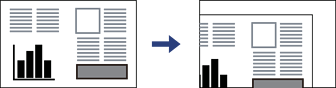
A range of 1.5 mm from the corner of the scanner glass is not scanned.
When originals are placed in the ADF and on the scanner glass, priority is given to the originals in the ADF.
Some sizes may not be automatically detected. In this situation, manually select the size of the originals.
If you leave the originals on the scanner glass for a long time, they may stick to the surface of the glass.
Do not load originals above the line just under the triangle symbol inside the ADFedge guide.
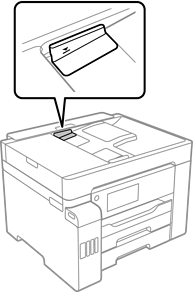
Do not add originals while scanning.
You can place A4 size originals with the long edge facing toward the ADF.
Some sizes may not be automatically detected. In this situation, manually select the size of the originals.