
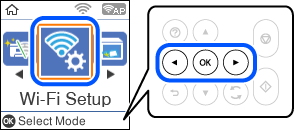
1 Select Wi-Fi Setup on the home screen.
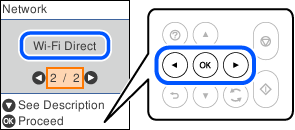
2 Select Wi-Fi Direct.
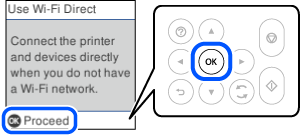
3 Press the OK button.
4 Press the OK button.
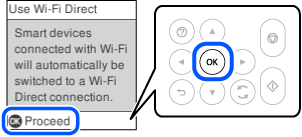
5
Press the  button.
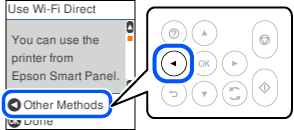
6 Select iOS.
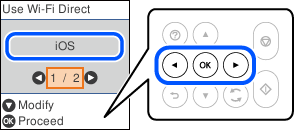
7 Press the OK button.
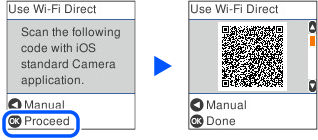
8 Watch the video below to learn how to scan the QR code to connect to the printer.

9 Launch the standard iOS Camera app, and then perform the steps according to the video you watched in the previous step. Tap Join to return to this screen.
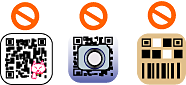
10 Follow the instructions on the printer’s control panel to complete the connection settings.
11 Switch from the standard camera app and start the Epson printing app.
