
There may be foreign objects inside the printer. Follow the steps below to remove them.
Turn off the printer by pressing the  button.
Unplug the power cord, and then disconnect the power cord from the printer.
Unplug the power cord when the power light is off. Otherwise, the print head will not return to the home position, which can cause the ink to dry and make printing impossible.
Check the following objects to make sure there are no foreign objects inside the printer.
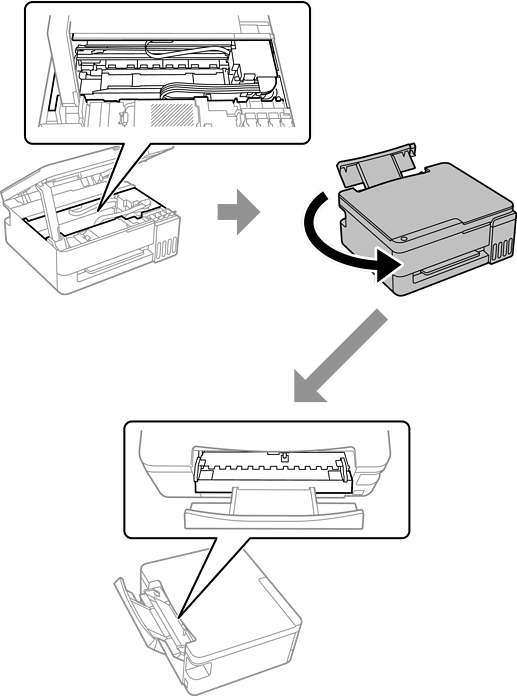
If you find any foreign objects, remove them with tweezers or a similar tool.
Be careful not to touch the objects shown in the following illustration when removing foreign objects, or the printer may be damaged.
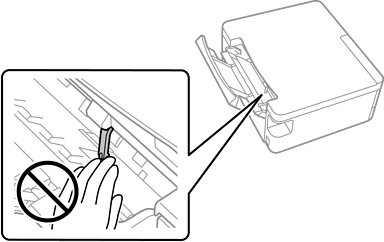
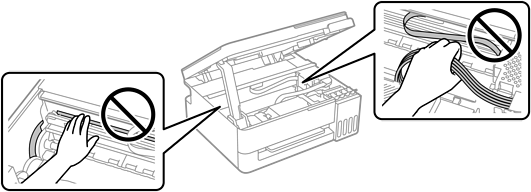
If you cannot remove the foreign objects, go to step 5, If you are able to remove them, go to step 7.
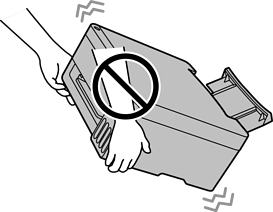
With the rear paper feeder pulled out, hold both sides of the front of the printer, and tilt the printer approximately 45 degrees to the rear.
When tilting the printer, be careful not to shake it, otherwise ink may leak or the printer may be damaged.
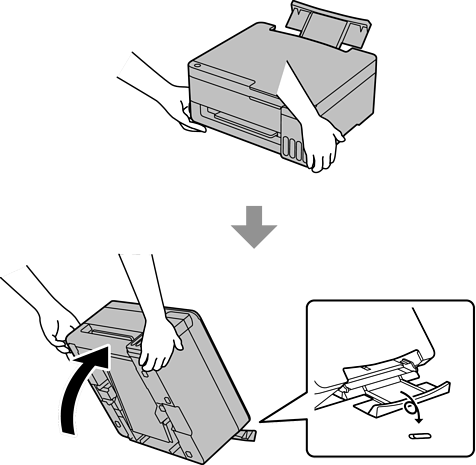
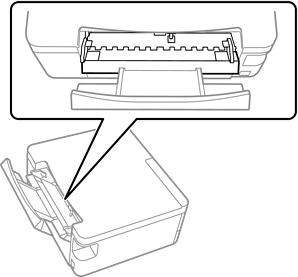
After slowly returning the printer to the horizontal position, check the following area. If you find any foreign objects, remove them with tweezers or a similar tool. Next, check through the gap in the rear paper feeder to confirm that all foreign objects have been removed.
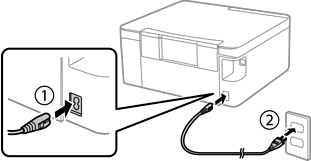
Connect the power cord, and then turn on the printer.
If the paper jam or paper out error continues to occur, contact Epson support.