
To confirm the actual ink remaining, visually check the ink levels in all of the printer's tanks.
Prolonged use of the printer when any ink level is below the lower line could damage the printer.
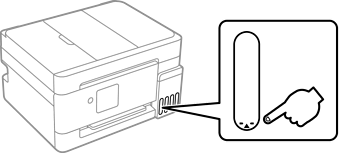
You can also check the approximate ink levels from the status monitor on the printer driver.
Windows
Click EPSON Status Monitor 3 on the Maintenance tab.
If EPSON Status Monitor 3 is disabled, click Extended Settings on the Maintenance tab, and then select Enable EPSON Status Monitor 3.
Mac OS
Apple menu > System Preferences (or System Settings) > Printers & Scanners (or Print & Scan, Print & Fax) > Epson(XXXX) > Options & Supplies > Utility > Open Printer Utility > EPSON Status Monitor
The product has a low ink alert system. The accuracy of this system depends on the user refilling the ink tanks correctly. The product cannot directly measure the ink levels in the tanks; instead it estimates the amount of ink remaining by internally monitoring ink usage. The low ink alert system may generate inaccurate messages if the ink tanks are not refilled according to these instructions.
As a precaution, perform regular visual inspections of the ink tanks to ensure ink levels do not fall below the lower lines. Continued use of the product when any ink level is below the lower line on the tank could damage the product.