
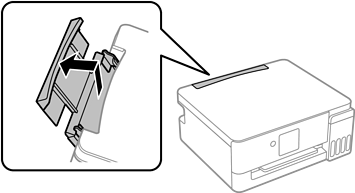
Pull out the paper support.
ET-4900 Series/L5390 Series
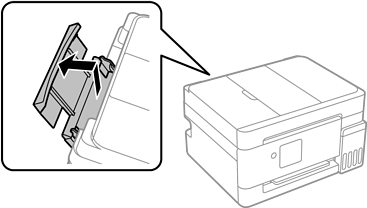
ET-2900 Series/ET-2920 Series/L3360 Series
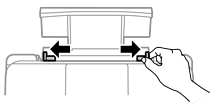
Slide out the edge guides.
Load paper at the center of the paper support with the printable side face-up.
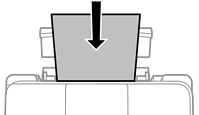
Do not load more than the maximum number of sheets specified for the paper. For plain paper, do not load above the line just under the  symbols on the edge guides.
Load paper short edge first. However, when you have set the long edge as the width of the user defined size, load paper long edge first.
Slide the edge guides to the edges of the paper.
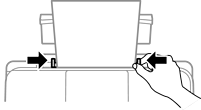
Select the paper size and paper type on the LCD screen.
This screen is not displayed if you have disabled Paper Setup Auto Display.
Slide out the output tray.
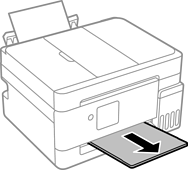
Return the remaining paper to its package. If you leave it in the printer, the paper may curl or the print quality may decline.