
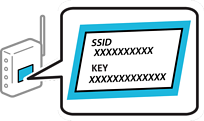
You can set up a Wi-Fi connection by entering the necessary information from the printer's control panel. To set up using this method, you need the SSID and password for your wireless router.
If you are using an wireless router with its default settings, the SSID and password are on the label. If you do not know the SSID and password, contact the person who set up the wireless router, or see the documentation provided with the wireless router.
Select Wi-Fi Setup on the home screen on the printer's control panel.
To select an item, use the
 buttons, and then press the OK button.
Select Wi-Fi.
Press the OK button to proceed.
Select Wi-Fi Setup Wizard.
Select the SSID for the wireless router from printer's control panel, and then press the OK button.
If the SSID you want to connect to is not displayed on the printer's control panel, press the  button to update the list. If it is still not displayed, select Other SSIDs, and then enter the SSID directly.
If you do not know the network name (SSID) check if the information is written on the label on the wireless router. If you are using the wireless router with its default settings, use the SSID on the label. If you cannot find any information, see the documentation provided with the wireless router.
If the SSID you want to connect to is not displayed, make Wi-Fi settings using software or apps on your computer or mobile device.
U.S. and Canada
Access the following website and search for your product. Download and run your product's software package, then follow the instructions on the computer screen to run the setup program.
Other Regions
Access the following website, and then enter the product name. Go to Setup, and then start setting up.
Enter the password.
Select whether or not you print a network connection report after finishing the settings.
The password is case-sensitive.
When you have completed setup, press the OK button.
If you fail to connect, load paper, and then press the  button to print a network connection report.