
This method allows you to connect the printer directly to devices without a wireless router.
For iOS or Android users, it is convenient to set up from Epson Smart Panel.
You only need to configure these settings for the printer and the device that you want to connect to once. Unless you disable Wi-Fi Direct or restore the network settings to their defaults, you do not need to configure these settings again.
Select Wi-Fi Setup on the home screen on the printer's control panel.
To select an item, use the
 buttons, and then press the OK button.
Select Wi-Fi Direct.
Check the message, and then press the OK button to proceed.
Check the next message, and then press the OK button to proceed.
Scroll down the printer screen to display the SSID and password required to set up the connection. On your device, select the same SSID.
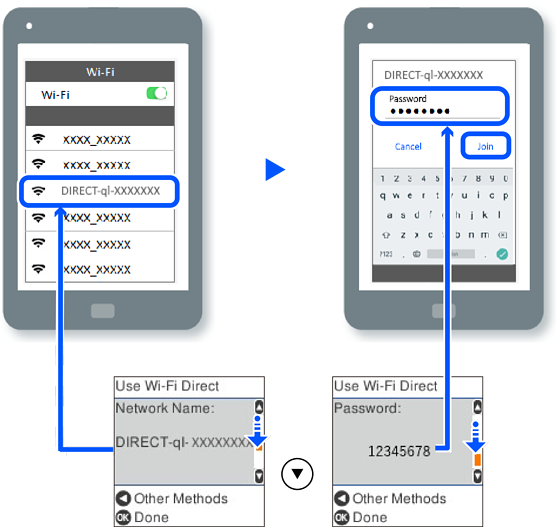
On the printer's control panel, press the OK button.
On the device's printing app screen, select the printer that you want to connect to.
For devices that have been connected to the printer before, select the network name (SSID) on the mobile device's Wi-Fi screen to connect them again.