
|
|
 |
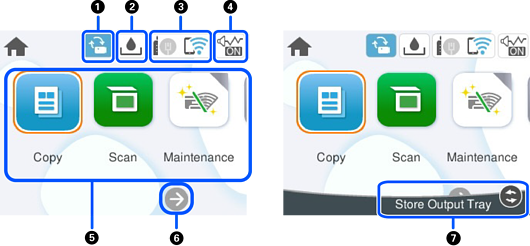
This is displayed when a firmware update is available. Select it to update the firmware to improve the printer's features. We recommend using the printer with the latest version of the firmware. |
|
|
|
 |
Displays the Remaining capacity of Maintenance box screen. You can check the approximate service life of maintenance box. |
|
|
|
 |
Displays the network connection status. See the following for more details. |
|
|
|
 |
Indicates that Quiet Mode is set for the printer. When this feature is enabled, the noise made by printer operations is reduced, but print speed may slow down. However, noises may not be reduced depending on the selected paper type and print quality. Select to change the setting. You can also make this setting from the Settings menu. Settings > General Settings > Printer Settings > Quiet Mode |
|
|
|
Displays each menu.
|
||
|
|

|
Scrolls the screen to the right. |
|
|
|
 |
Press the |
|


 button to store the output tray.