
1
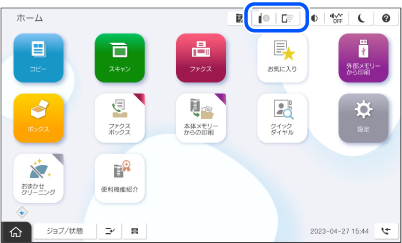
Select  on the printer’s home screen.
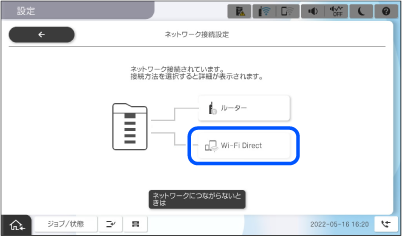
2 Select Wi-Fi Direct.
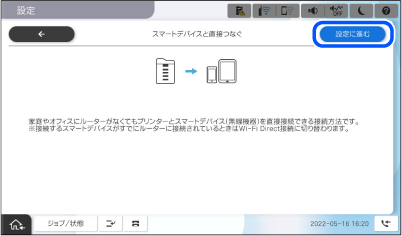
3 Tap Start Setup.
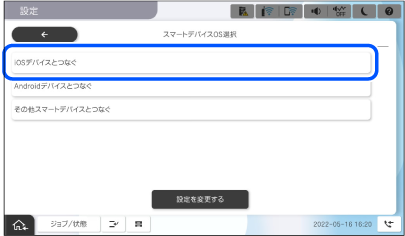
4 Tap iOS.
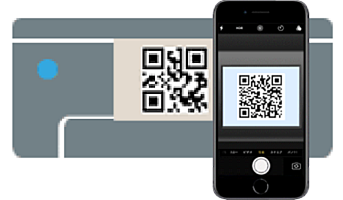
5 On your iPhone, iPad or iPod touch, start the standard Camera app, and then scan the QR code displayed on the printer's control panel in PHOTO mode.
6 Tap the connect information displayed on the screen of the iPhone, iPad, or iPod touch.
7 Tap Join.
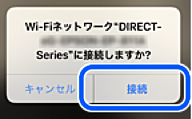
8 Check that a message indicating that a connection has been established is displayed on the printer’s control panel, and then tap OK.
9 Select Complete.
10 On the iPhone, iPad or iPod touch, start Epson Smart Panel.