
Create a network folder on your computer. The computer must be connected to the same network as the scanner.
The procedure for creating the network folder varies depending on the environment. This section gives instructions for creating a network folder in the following environment.
Operating system: Windows 11
Location for creating shared folder: Desktop
Folder path: C:\Users\xxxx\Desktop\scan_folder (create a network folder called "scan_folder" on the desktop)
Log in to the computer where you want to create the network folder.
If you log in with a user account that does not have administrator privileges, you may be prompted to enter the administrator password. If you do not know the administrator password, please check with the computer administrator.
Make sure that the device name (computer name) does not contain double-byte characters. Click the Windows Start button, and then select  Settings > System > About.
If there are double-byte characters in the device name, file saving may fail.
Check that the string displayed in Device specifications > Device name does not contain any double-byte characters.
There should be no issues if the device name contains only single-byte characters. Close the screen.
Example: EPSPUB313
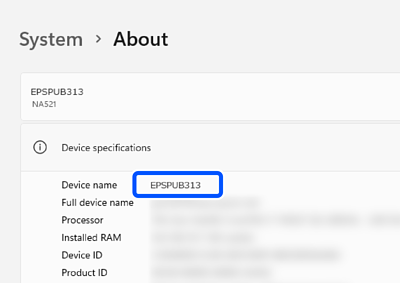
If the device name contains double-byte characters, use a computer that does not use double-byte characters or rename the device.
If you need to change the device name, make sure you check with your computer administrator in advance as it may affect computer management and access to resources.
Next, make sure File and Printer Sharing is turned on.
Click the Windows Start button, and then click Settings > Network & internet > Advanced network settings > Advanced sharing settings.
The network profile is displayed.
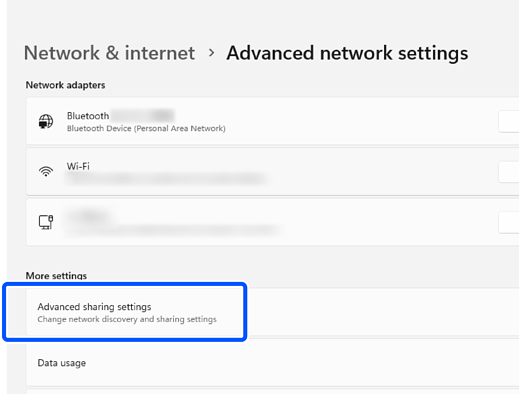
Make sure File and Printer Sharing is turned on for the profile labeled Current Profile.
If it is turned off, turn it on.
Next, create a network folder and configure sharing permissions for the user.
Create and name a folder on your desktop.
For the folder name, enter within 1 to 12 alphanumeric characters. If the name exceeds 12 characters, you may not be able to access the folder depending on your environment.
Example: scan_folder
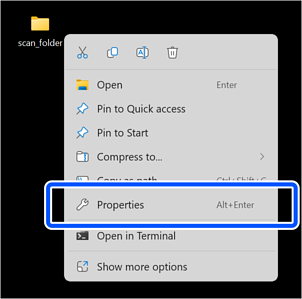
Right click the folder, and then select Properties.
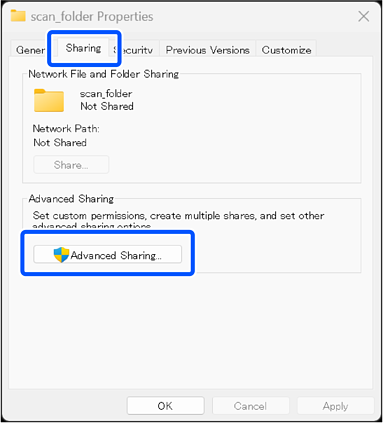
Click Advanced Sharing on the Sharing tab.
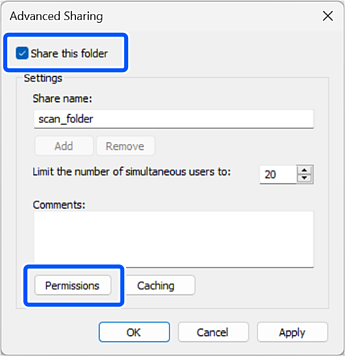
Select Share this folder, and then click Permissions.
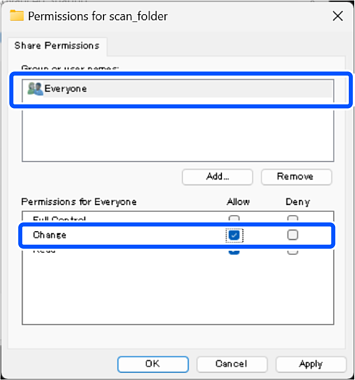
Select Everyone in Group or user names, select Allow in Change, and then click OK.
Click OK to close the screen and return to the Properties window.
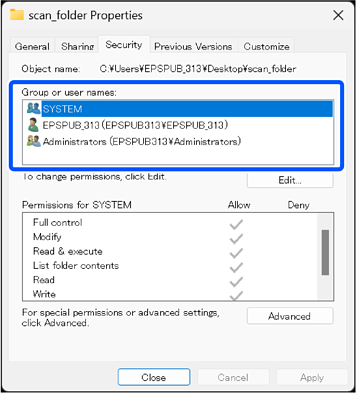
Select the Security tab, and then check the Group or user names.
The groups or users that are displayed here can access the network folder.
Click Edit to add access permissions, if necessary.
In this case, both the user who logs in to this computer and the Administrator can access the network folder.
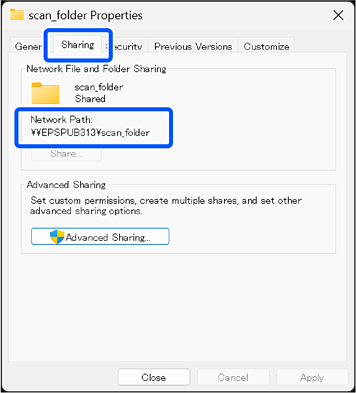
Select the Sharing tab again and make a note of the displayed network folder path.
This is used when registering your contacts to the scanner.
Example: \\EPSPUB313\scan_folder
Click OK to close the screen.
This completes creating a network folder.
Click the link below for more details on using the "Scan to Network Folder/FTP" feature.