
You can scan different sizes or types of originals one by one using Automatic Feeding Mode. In this mode, the scanner starts scanning automatically when originals are loaded into the scanner.
Start Epson ScanSmart.
Click  Settings.
Click Scan Settings on the Scanner Settings tab.
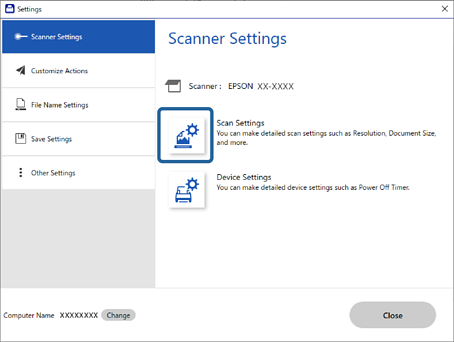
The Epson Scan 2 window is displayed.
Select Automatic Feeding Mode on the Main Settings tab.
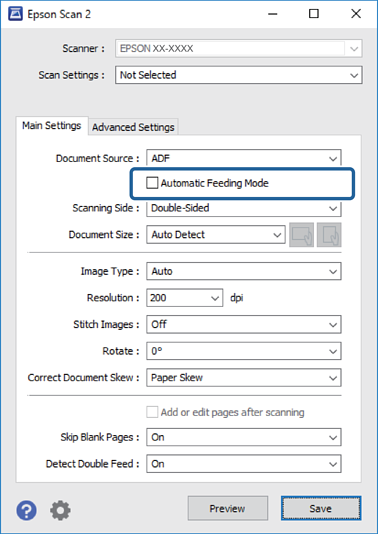
Make other settings for scanning on the Epson Scan 2 window.
You can make timeout settings to finish Automatic Feeding Mode.
Select Settings on the Document Source list to open the Document Source Settings window. Set Automatic Feeding Mode Timeout (seconds) on the window.
Click Save to close the Epson Scan 2 window.
Click Close to close the Settings window.
Click Scan double-sided or Scan single-sided.
Automatic Feeding Mode starts.
Adjust the edge guides, and then place the original in the ADF.
Scanning starts automatically.
After scanning stops, place the next original in the ADF.
Repeat this procedure until you have scanned all originals.
If you want to scan originals that are detected as double feeds, for example plastic cards or envelopes, skip double feed detection. On the scanner's control panel, select the Scanner Settings, and then enable DFDS Function before placing the original.
If you want to scan originals that are likely to jam, for example thin paper, slow down the scanning speed. On the scanner's control panel, select the Scanner Settings, and then enable Slow before placing the original.
After you have scanned all originals, exit Automatic Feeding Mode.
Click Finish on the Automatic Feeding Mode window displayed on your computer.
Follow the instructions of the Epson ScanSmart to save the scanned image.