
Save the scanned image to a specified folder on a network.
You need to make settings in advance. See the following link for details on the work flow for making settings.
Scan to Network Folder/FTP Feature Work Flow
Before scanning, make sure the scanner’s Date/Time and Time Difference settings are correct.
If you need to make changes, select Settings > Basic Settings > Date/Time Settings on the control panel.
Place the original.
Example: For standard paper
Select Network Folder/FTP on the home screen on the control panel.
Specify the folder.
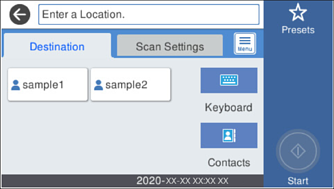
Select Scan Settings, check settings such as the save format, and then change them if necessary.
Scan Menu Options for Scanning to a Folder
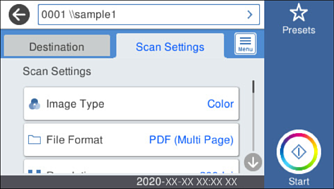
Select  to save your settings as a preset.
Select  , check the Scanner Settings, and then change them if necessary.
You can change the settings such as Slow or DFDS Function.
Tap  .
.
Scanned images are saved in the destination network folder.
After scanning, you may be prompted to save the settings as the User Settings.