
Place originals on the scanner glass or in the ADF.
You can place multiple originals in the ADF. If auto duplex scanning is available, you can scan both sides of the originals at the same time. See the link below for the specifications of the ADF.
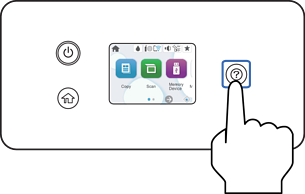
To view animated instructions for placing originals, select  , and then select How To > Place Originals. Select the method of placing originals that you want to view. Select Finish to close the animation screen.
Be careful not to trap your fingers when closing the document cover. Otherwise you may be injured.
When placing bulky originals such as books, make sure exterior light is not shining directly onto the scanner glass.
Do not apply too much force to the scanner glass or the document cover. Otherwise, they may be damaged.
If there is any dust or dirt on the scanner glass, the scanning range may expand to include it, so the image of the original may be displaced or reduced. Remove any dust and dirt from the scanner glass before scanning.

The area 1.5 mm (0.06 in.) from the edges of the scanner glass is not scanned.
When originals are placed in the ADF and on the scanner glass, priority is given to the originals in the ADF.
If you leave the originals on the scanner glass for a long time, they may stick to the surface of the glass.
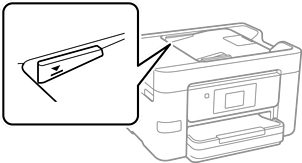
Do not load originals above the line just under the triangle symbol on the ADF edge guide.
Do not add originals while scanning.