
|
|
 |
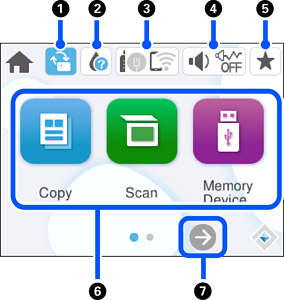
This is displayed when a firmware update is available. Tap it to update the firmware to improve the printer's features. We recommend using the printer with the latest version of the firmware. |
|
|
|
 |
Tap this to display the Supply Status screen. You can check the approximate ink levels and the approximate service life of the maintenance box. |
|
|
|
 |
Tap this to display the network connection status. See the following for more details. |
|
|
|
 |
Tap this to display the Device Sound Settings screen. You can enable Mute and Quiet Mode. You can access the Sound menu from this screen. |
|
  |
Indicates whether or not Quiet Mode is enabled. When this feature is enabled, the noise made by printer during printing may be reduced depending on the selected paper type and print quality, but print speed may decrease. |
||
 |
Indicates that Mute is enabled. |
||
|
|
 |
Displays the list of settings registered to the Preset. You can also register new favorite settings. |
|
|
|
Allows you to access the following menus.
|
||
|
|
 |
Scrolls the screen to the right. |
|


