
If the nozzles are clogged, the printouts become faint, there is visible banding, or unexpected colors appear. If the nozzles are severely clogged, a blank sheet will be printed. When print quality has declined, first use the nozzle check feature to check if the nozzles are clogged. If the nozzles are clogged, clean the print head.
Do not open the scanner unit or turn off the printer during head cleaning. If the head cleaning is incomplete, you may not be able to print.
Head cleaning consumes ink and should not be performed more than necessary.
When ink is low, you may not be able to clean the print head.
If all nozzle check lines are not printed completely after running a nozzle check and Cleaning alternately 3 times, wait for at least 12 hours without printing, run the nozzle check once again, and then repeat head cleaning if necessary. We recommend turning off the printer by using the  button. If all nozzle check lines are still not printed completely, contact Epson support.
To prevent the print head from drying out, do not unplug the printer while the power is on.
You can check and clean the print head by using the printer's control panel.
Select Maintenance on the printer's control panel.
Select Print Head Nozzle Check.
Follow the on-screen instructions to load paper and print the nozzle check pattern.
Examine the printed pattern.
 and go to the next step.
 to exit.
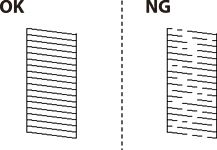
Follow the on-screen instructions to clean the print head.
When cleaning is finished, follow the on-screen instructions to print another nozzle check pattern. Repeat cleaning and printing the pattern until all lines are printed completely.
If all nozzle check lines are not printed completely after running a nozzle check and Cleaning alternately 3 times, wait for at least 12 hours without printing, run the nozzle check once again, and then repeat head cleaning if necessary. We recommend turning off the printer by using the button. If all nozzle check lines are still not printed completely, contact Epson support.
You can also check and clean the print head from the printer driver.
Windows
Click Maintenance on the Maintenance tab, and then select Print Head Nozzle Check.
Mac OS
Apple menu > System Preferences (or System Settings) > Printers & Scanners (or Print & Scan, Print & Fax) > Epson(XXXX) > Options & Supplies > Utility > Open Printer Utility > Print Head Nozzle Check