
|
|
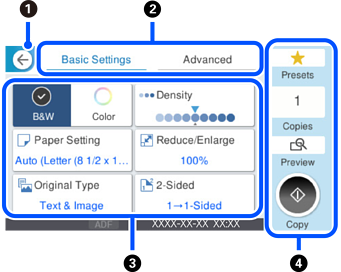
Returns to the previous screen. |
|
|
|
Tap this to switch the list of settings using the tabs. The Basic Settings tab displays frequently used items. The Advanced tab displays other items that you can set as necessary. |
|
|
|
Display a list of settings. When Grayed out items are not available. Select the item to check why it is unavailable. If any problems occur, |
|
|
|
Starts an action using the current settings. Items in this area vary depending on the menu. |
|
|
Presets |
Tap this to display the preset list. You can register current settings as a preset, or load registered presets. |
|
|
Copies |
Tap this to display the on-screen keypad and enter the number of copies. |
|
|
Preview |
Tap this to display a preview of the image before printing, copying, or sending faxes. |
|
|
|
Tap this to start printing, copying, scanning, or sending faxes. |
|


 is displayed, you can view additional information by selecting the icon. Select settings by selecting the item or adding a check mark. When you have changed an item from the user default or the factory default,
  is displayed on the item.
 is displayed on the item. Select the icon to check how to solve the problem.

